How to Use Cursor Background Agents: Branching, PRs & Parallel Runs (2026)
Use Cursor Background Agents in 2026: connect GitHub, configure worktrees, run parallel cloud agents, and ship PR-ready code while you focus elsewhere.

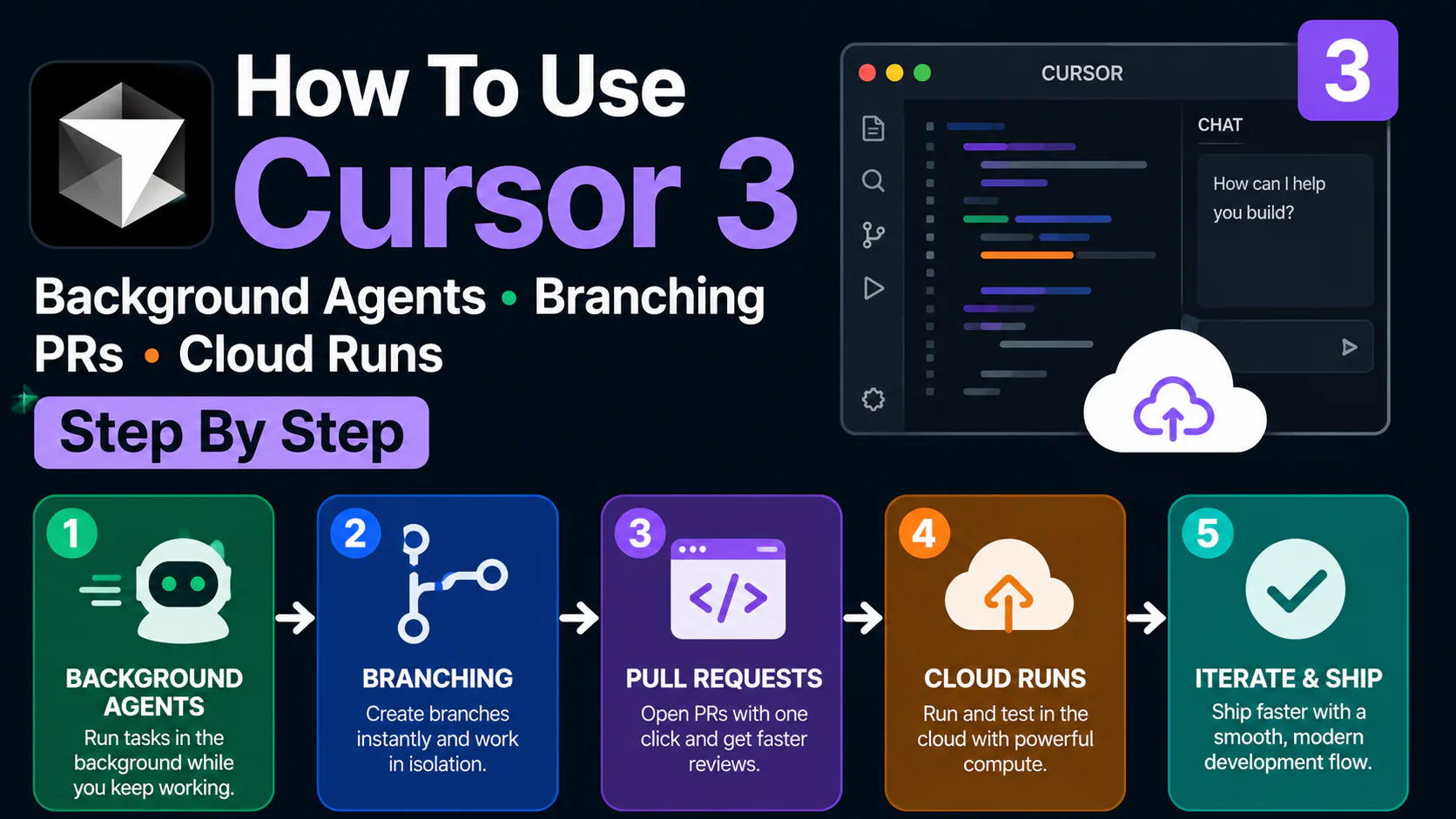
You have six bug tickets in your backlog, a two-hour meeting starting in ten minutes, and a sprint review tomorrow. With Cursor Background Agents, you can dispatch all six tasks before the meeting starts, walk back to your desk two hours later, and have six PRs waiting for review.
That is not a hypothetical. It is the workflow this guide walks you through, step by step.
Background Agents run your coding tasks on isolated cloud VMs while you do something else entirely. They clone your repo, create a branch, write the code, run the tests, and open a pull request with a video demo of the working feature. Since launching with Cursor 1.0 in mid-2025, they have matured into the most practically useful async coding feature in any IDE today.
This guide covers the full setup: prerequisites, GitHub connection, worktrees.json config, launching agents from the Agents Window and from GitHub issues, running parallel agents, reviewing PRs with video evidence, and the honest limitations you need to know before committing.
TL;DR: Cursor Background Agents require a Pro plan ($20/month), a connected GitHub account, and usage-based billing enabled. From there: open the Agents Window (Cmd+Shift+A), click "New Agent," describe the task, and walk away. The agent opens a PR when done.
What Cursor Background Agents actually do
Before setup, it is worth understanding the architectural difference between Background Agents and the standard Agent Mode you may already use.
Standard Agent Mode (Composer) runs inline in your editor on your local files. It is synchronous: you watch it work, redirect it when it goes wrong, and wait for it to finish. One task at a time.
Background Agents work in a separate cloud VM. You describe the task, hand it off, and come back to a PR. No waiting, no babysitting.
The isolation mechanism is a git worktree: a second (or eighth) checkout of the same repository in a different directory, on a different branch. Every agent gets its own worktree, which means agents running in parallel cannot overwrite each other's files. You get clean isolation, clean branches, and clean PRs for every task.
Your IDE (local)
     │
     │ Dispatches task + repo context
     ▼
Cursor Cloud (Background Agent)
┌────────────────────────────┐
│  Isolated Ubuntu VM        │
│  ├─ Cloned repo branch     │
│  ├─ Git worktree (own dir) │
│  ├─ Browser (Computer Use) │
│  └─ Video recording        │
└────────────────────────────┘
     │
     │ Opens Pull Request on GitHub
     ▼
GitHub PR with diff + screenshots + video demo
     │
     ▼
BugBot review → You review → Merge
The February 2026 "Cloud Agents with Computer Use" update gave each agent a full desktop with browser access. Agents now navigate to localhost, click through UI elements, verify that code changes actually work visually, and record a short video of the feature in action. Reviewers watch a 30-second demo instead of mentally simulating a diff.
Cursor's own team uses Background Agents for 35% of their internal merged PRs. That figure covers documentation updates, test additions, dependency upgrades, small bug fixes, and routine API integrations. Complex architectural decisions stay human-authored.
Prerequisites
You need four things before Background Agents will work:
- Cursor Pro or higher (Hobby plan does not include Background Agent access)
- Cursor 3.0 or later for the full Agents Window experience (Help → Check for Updates)
- A GitHub repository that Cursor can clone and push branches to
- Usage-based billing enabled, or a minimum $10/month spending limit set in Settings
Background Agents spin up cloud VMs on demand, which is why they sit behind the usage-based billing gate. Set a spending limit before you start to avoid surprises. More on credit costs in the limitations section below.
Step 1: Connect your GitHub account
Open Cursor Settings
Press Cmd+, (macOS) or Ctrl+, (Windows/Linux) to open Settings.
Navigate to Account, then GitHub
Click "Connect GitHub Account."Authorize the Cursor GitHub App
Grant access to specific repos rather than all repositories unless you have a reason to do otherwise. This limits what agents can clone and push.
Verify the connection
Settings should display your GitHub username and the list of accessible repositories. If a repo you want to use is missing, re-authorize with expanded permissions.
Step 2: Enable Background Agents
Go to Settings, then Background Agents
This section only appears after GitHub is connected.
Enable usage-based billing or set a spending limit
A minimum $10/month limit is required to activate Background Agents. Cursor recommends setting a per-session and per-month cap before running agents on expensive frontier models.
Choose a default model
The options are Auto, Claude, GPT-5, and Gemini. Auto selects based on task complexity. For consistent results on complex coding tasks, Claude Sonnet is the recommended default for most workflows.
Credit costs are not flat. An agent running for 30 minutes on Claude Opus 4.7 costs significantly more than one running for five minutes on Claude Sonnet. Monitor per-session credit consumption during your first two weeks to establish a cost baseline before rolling this out to a full team.
Step 3: Configure worktrees.json
Create a .cursor/worktrees.json file in your project root. Cursor reads this when spinning up a worktree for any Background Agent, giving you control over the agent's environment before it starts the task.
For a Node.js project:
{
  "setup-worktree-unix": "npm install && cp .env.example .env.local",
  "setup-worktree-windows": "npm install && copy .env.example .env.local"
}
For a Python project:
{
  "setup-worktree-unix": "python -m venv .venv && source .venv/bin/activate && pip install -r requirements.txt"
}
The three supported keys are setup-worktree-unix, setup-worktree-windows, and setup-worktree (a fallback for all operating systems). Each accepts a shell command or a path to a setup script.
Use a fast package manager here. bun, pnpm, and uv all reduce agent startup time compared to npm and pip on cold installs, which compounds across parallel agents.
Step 4: Launch your first Background Agent
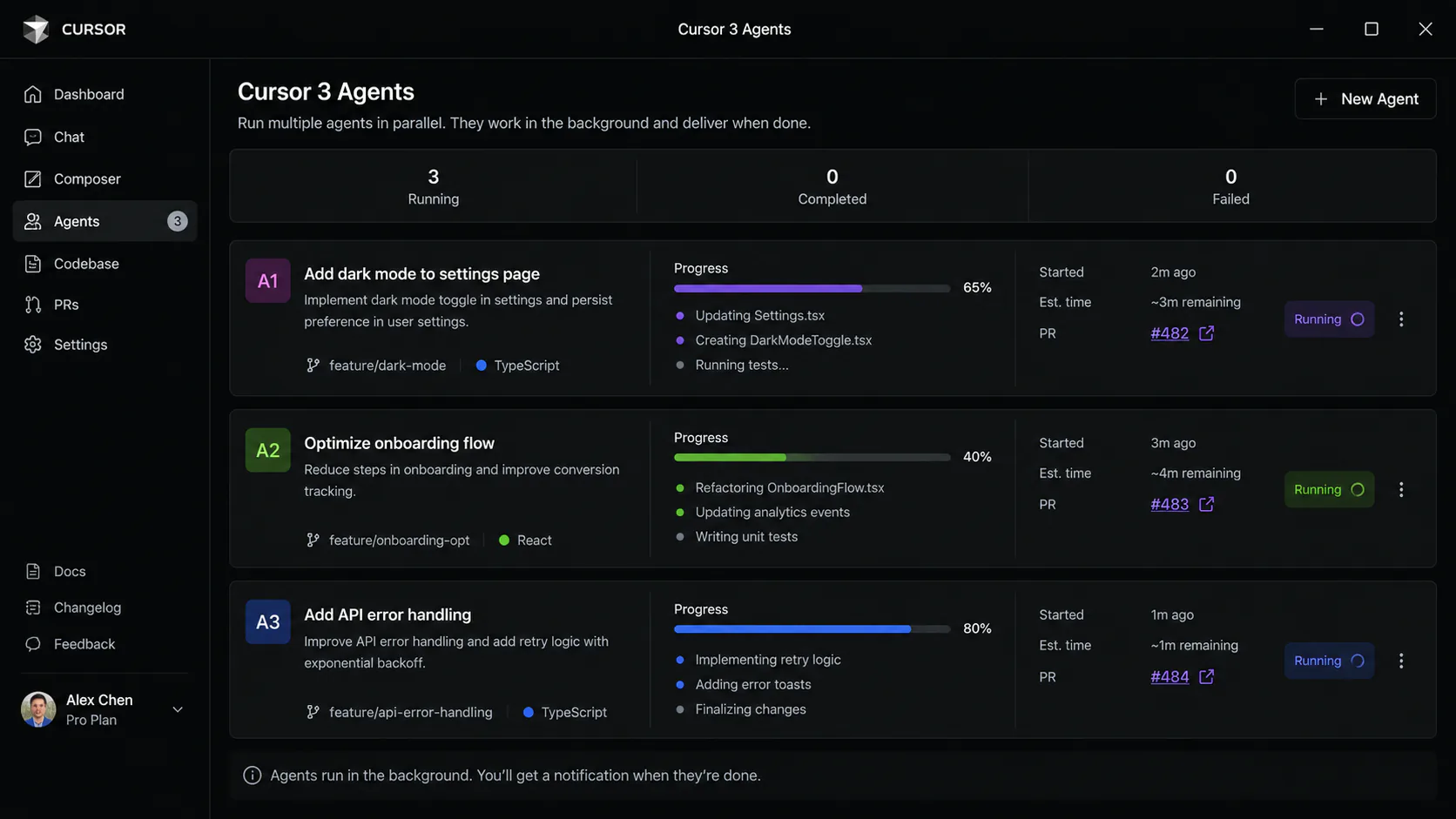
The Agents Window is the primary interface for Background Agents in Cursor 3. Open it with Cmd+Shift+A or the sidebar icon.
From the Agents Window:
Click New Agent
Select the repository and target branch (usuallymain).Write a clear task description
This is the most important step. Background Agents need tighter task descriptions than interactive Agent Mode. A vague description produces a PR that doesn't address what you needed, wastes credits, and requires a re-run. More on what "clear" means in the writing prompts section below.
Click Start
The agent appears in the Agents Window with a status indicator. It is now running in a cloud VM. You can close Cursor entirely and come back later.
From a GitHub Issue:
Install the Cursor GitHub App
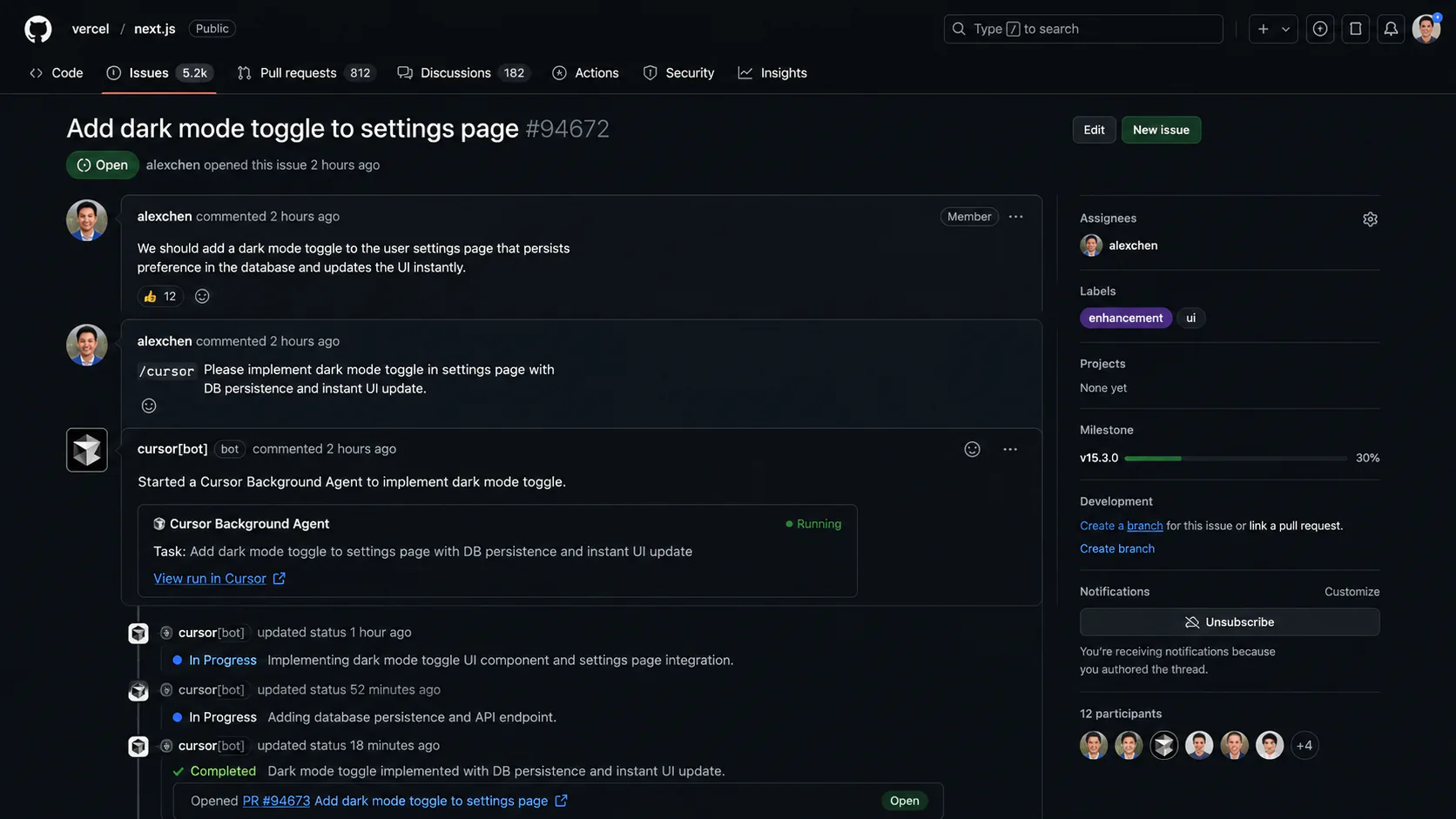
One-click from Settings → Integrations.Type /cursor in any GitHub issue comment
Follow it with the task description:
/cursor Fix the race condition described in this issue: the lock acquisition in UserSessionManager.ts:142 is not thread-safe when multiple tabs are open simultaneously.Monitor from the Agents Window or the GitHub issue thread
Agent status updates post back to the issue thread so non-Cursor teammates can see progress.
From Slack:
Connect Slack in Settings → Integrations, then dispatch from any channel:
@cursor implement the authentication fix from ticket PROJ-123Agent status posts back to the same Slack thread.
Step 5: Run agents in parallel
This is where Background Agents become genuinely powerful. The worktree isolation model means agents cannot conflict with each other, so you can run up to eight simultaneously with no resource contention on your local machine.
Method 1: Agents Window batch dispatch
Open the Agents Window and click "New Agent" for each parallel task. Each gets its own VM and its own branch. Monitor all from the same panel.
Method 2: /worktree command
In any Cursor chat:
/worktree implement the password reset email flow from PRD section 4.3Cursor creates a branch (e.g., cursor/password-reset-email), creates a git worktree for it, and runs the agent in isolation from your current working branch.
Method 3: /multitask for task splitting
/multitask
1. Write unit tests for the UserAuth module
2. Update the README with the new deployment steps
3. Fix the three flaky Playwright tests in the checkout flow
Cursor breaks this into three parallel async subagents, each in its own worktree. You get three PRs instead of one large PR that conflates test writing, documentation, and test fixes.
Plan for non-overlapping file domains. If two agents both need to modify AppModule.ts, you
will have a merge conflict to resolve. Before dispatching parallel agents, think through which
files each task touches. Agents that operate in separate directories or separate modules are
cleanest.
The parallel bug fix pattern
A developer with five small bug tickets in the backlog:
- Opens Agents Window, dispatches five agents, one per GitHub issue
- Attends a two-hour meeting
- Returns to five PRs with BugBot comments and video demos
- Reviews and merges four, sends one back with a clarifying comment
- Net result: four bugs resolved during a meeting that would have been idle time
This "async sprint" pattern is the highest-leverage use of Background Agents for developers with a backlog of well-scoped, independent tasks.
Step 6: Write task descriptions that actually work
The difference between a useful agent PR and a wasted credit burn is task description quality. These guidelines come from experienced Cursor users after months of running Background Agents on production codebases.
Include:
- The specific file(s) or module(s) affected, not just a feature name
- The expected behavior after the change
- Any constraints (don't modify the public API, keep the existing test patterns, use the project's error handling conventions)
- Links to relevant context (GitHub issue URL, PRD section, existing similar implementation)
Avoid:
- Feature names without context ("implement user preferences")
- Tasks that require architectural judgment ("refactor the authentication module")
- Tasks with ambiguous scope ("improve performance")
Good task description:
Add input validation to the POST /api/users endpoint in src/api/users.ts.

The endpoint currently accepts any payload. Add Zod validation that:

- Requires email (valid format), name (1-100 chars), and role (enum: admin | user | viewer)
- Returns 422 with field-level error messages for invalid input
- Matches the validation pattern used in src/api/posts.ts (reference it for style)

Write unit tests in src/api/users.test.ts following the existing test structure.
Task description to avoid:
Add validation to the users APIThe second version will produce a PR, but it will probably not match what you needed. The first version gives the agent enough context to produce a reviewable PR on the first run.
Step 7: Review agent PRs
Agent PRs contain more than diffs. For Computer Use agents (the default since February 2026), each PR includes:
- A structured summary of what changed and why
- Screenshots of the feature in action
- A short video recording (typically 15-45 seconds) of the agent navigating the live application
- Test output
- Inline BugBot comments if BugBot is configured
The review workflow:
Read the PR description
The agent writes a structured summary. Scan it for intent alignment before reading the diff.
Watch the video demo
A 30-second video of the working feature gives faster confidence than reading 200 lines of diff. If the video shows the feature working as expected, proceed to diff review.
Review the diff
Look for design pattern violations, edge cases the agent may have missed, and logic errors that automated tests wouldn't catch. Agents lack the domain context an experienced team member brings.
Optionally connect to the remote desktop
From the PR view in the Agents Window, click "Connect to Desktop" to use the live environment yourself before approving. This works without checking out the branch locally.
Approve and merge, or comment with changes
If changes are needed, leave a PR comment describing them specifically. BugBot or another Background Agent can pick up the revision request.
Always review agent PRs. Even when the agent says it's done and BugBot passes, read the diff. Agents introduce subtle logic errors and miss edge cases that only a developer familiar with the codebase would catch. Teams that auto-approve agent PRs based on BugBot passing will eventually merge regressions.
To promote a worktree branch to your local workspace after reviewing:
git worktree list              # See all active worktrees
git checkout cursor/feature-branch  # Switch to it locally
Or from the Agents Window: click the branch name, then "Open in Editor."
Multi-repo agents (Cursor 3.5+)
The May 2026 update added multi-repo workspace support. A single agent session can now target a workspace spanning multiple repositories, which is relevant for microservices architectures where a feature requires coordinated changes across frontend, backend, and shared libraries.
Configure a workspace in Settings → Workspaces, add the relevant repos, then dispatch:
Implement the user preferences API across all three repos:
- backend: add GET /api/preferences and PATCH /api/preferences in src/routes/preferences.ts
- shared-types: add UserPreferences interface to packages/types/src/user.ts
- frontend: add the Settings > Preferences UI component in src/components/settings/

Open three linked PRs, one per repo, referencing each other in the descriptions.
This pattern previously required three sequential agent sessions or one developer switching context between three repos. With multi-repo workspaces, one agent handles all three and opens three linked PRs.
BugBot: automated PR review
BugBot is Cursor's AI code review tool. Configure it once and it reviews every PR automatically (including agent PRs) within a few minutes of the PR opening.
As of April 2026, BugBot has a resolution rate near 80%, ahead of GitHub Copilot (46.69%), CodeRabbit (48.96%), and Greptile (63.49%) in a benchmark across 50,310 PRs. It also learns from reviewer feedback: it reads reactions and comments, generates rules from the signal, and promotes the ones that prove accurate over time.
Enable BugBot from Settings → Integrations → BugBot. Choose your model (Sonnet 4.7 is the default; GPT-5.5 is an option). BugBot posts inline comments ahead of any human reviewer.
One important note on cost: BugBot Pro is a separate product at $40/user/month on top of your Cursor subscription. For teams that want AI code review alongside AI coding assistance, budget for both.
Limitations you need to know
Background Agents are a real productivity multiplier for the right tasks. They are not the right tool for everything.
Task complexity ceiling. Background Agents work reliably on well-scoped, unambiguous tasks: bug fixes with clear reproduction steps, adding tests to existing functionality, refactoring a single module, dependency upgrades with documented migration paths. They struggle with ambiguous requirements, architectural decisions, and tasks spanning many cross-cutting concerns. If you cannot write the task description without saying "figure out the best approach," it is not a Background Agent task.
Merge conflicts from poor task decomposition. If two agents modify the same file, you will have a merge conflict to resolve. The worktree isolation prevents file-level collisions between agents, but it does not prevent you from dispatching agents with overlapping domains. Plan task decomposition before dispatching parallel agents.
Credit consumption surprises. Background Agents use usage-based credits, not your standard monthly request allowance. An agent running 30 minutes on a frontier model can consume credits equivalent to hundreds of standard requests. Set per-session and per-month spending limits before running agents at scale. Establish a cost-per-PR baseline in your first two weeks.
GitHub only. Background Agents require GitHub. GitLab, Bitbucket, and self-hosted Git platforms are not supported. If your team uses a non-GitHub platform, this feature is not currently available.
Review burden grows with agent volume. As agents produce more PRs, code review becomes the bottleneck. Teams that increase agent throughput without increasing review bandwidth end up with a PR queue that defeats the productivity gain. BugBot helps, but it adds cost and does not replace human review for logic and domain correctness.
Cursor Background Agents vs. Claude Code and Codex
Background Agents are not the only option for async AI coding work. Two alternatives worth understanding:
OpenAI Codex also runs cloud VMs and produces PRs. The meaningful difference: Codex is included in ChatGPT Plus/Pro (no separate credits), has no remote desktop access or video recording, and is more cost-effective for teams already in the OpenAI ecosystem. Cursor Background Agents have deeper IDE integration, visual PR evidence, and Slack/mobile dispatch. For teams primarily using Cursor as their daily IDE, Background Agents are the stronger fit. For cost-sensitive async work outside an IDE context, Codex is worth evaluating.
Claude Code leads the terminal-bench 2.0 benchmark at 77.3% and uses approximately 6x fewer tokens than Cursor on identical tasks (33K tokens vs. 188K tokens in head-to-head benchmarks). For large codebase tasks requiring extensive context, Claude Code's 1M token window and token efficiency are meaningful advantages. Cursor Background Agents' strength is the workflow integration: the Agents Window, GitHub PR pipeline, video recording, and Slack dispatch make them better for team visibility and collaboration. See our open-source AI coding tools review for alternatives, and our SaaS pricing comparison for why usage-based billing matters here.
The most productive teams use both: Cursor for daily interactive editing and async Background Agents, Claude Code for deep reasoning on large refactors. This is not either/or.
What to build next
Once you have Background Agents running, three workflows are worth setting up immediately:
The async sprint: At the start of each sprint, identify your 3-5 best-scoped backlog tickets and dispatch a Background Agent on each. Review the PRs during the sprint rather than coding them yourself.
The test coverage push: Use /multitask to dispatch one agent per untested module. Each agent writes tests for its assigned module and opens a PR. Review and merge over a few days to increase coverage without dedicated sprint time.
The GitHub issue integration: Install the Cursor GitHub App and start dispatching agents directly from issues with /cursor. This creates a visible record of which issues have agents working on them and keeps the entire context (issue, agent status, PR) in one place.
Background Agents are most valuable when you treat them as async teammates, not magic autocomplete. Write clear task descriptions, decompose work into non-overlapping domains, and review every PR with the same rigor you would apply to a junior developer's contribution. The productivity gains are real when the workflow discipline is there.
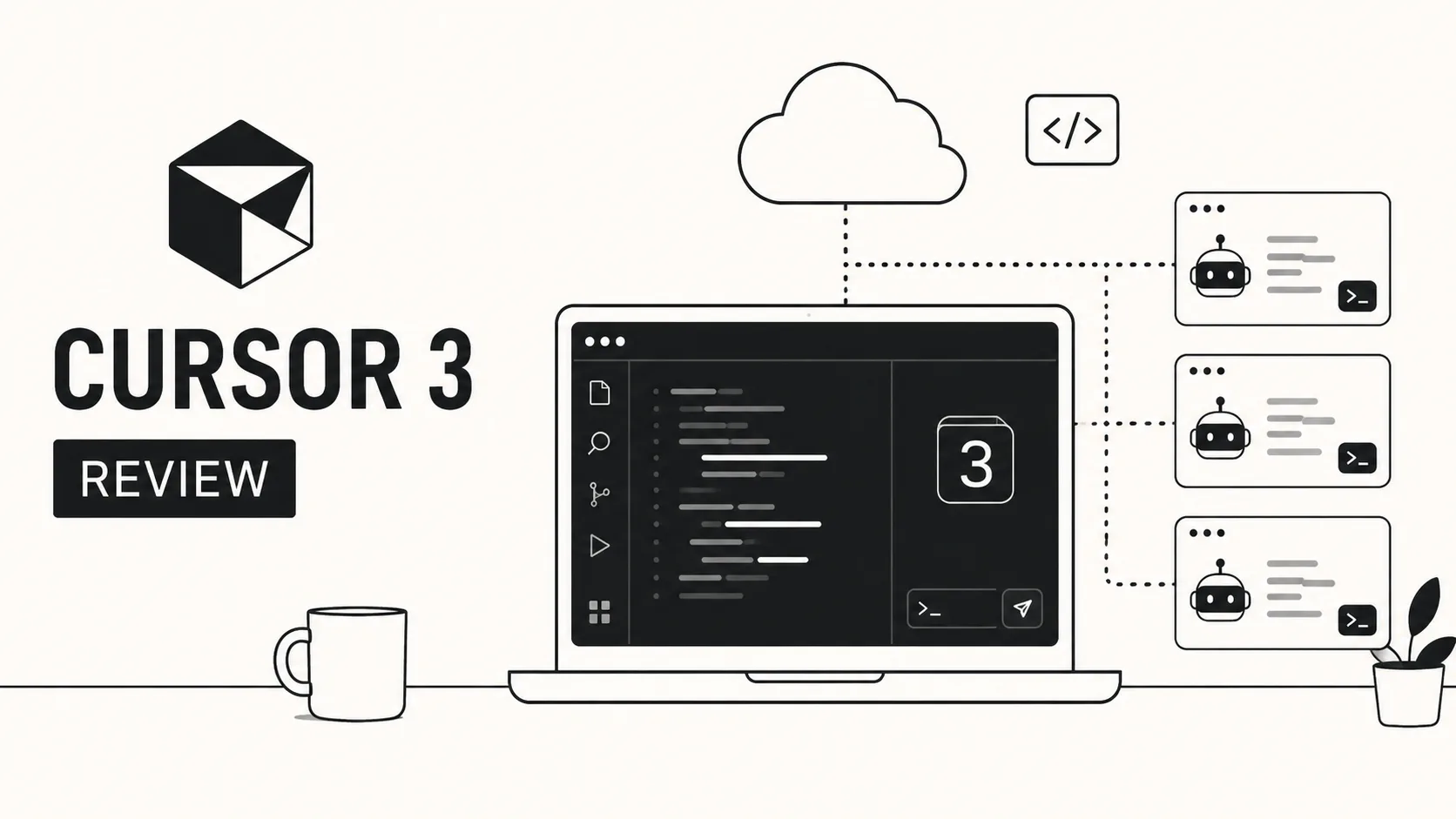
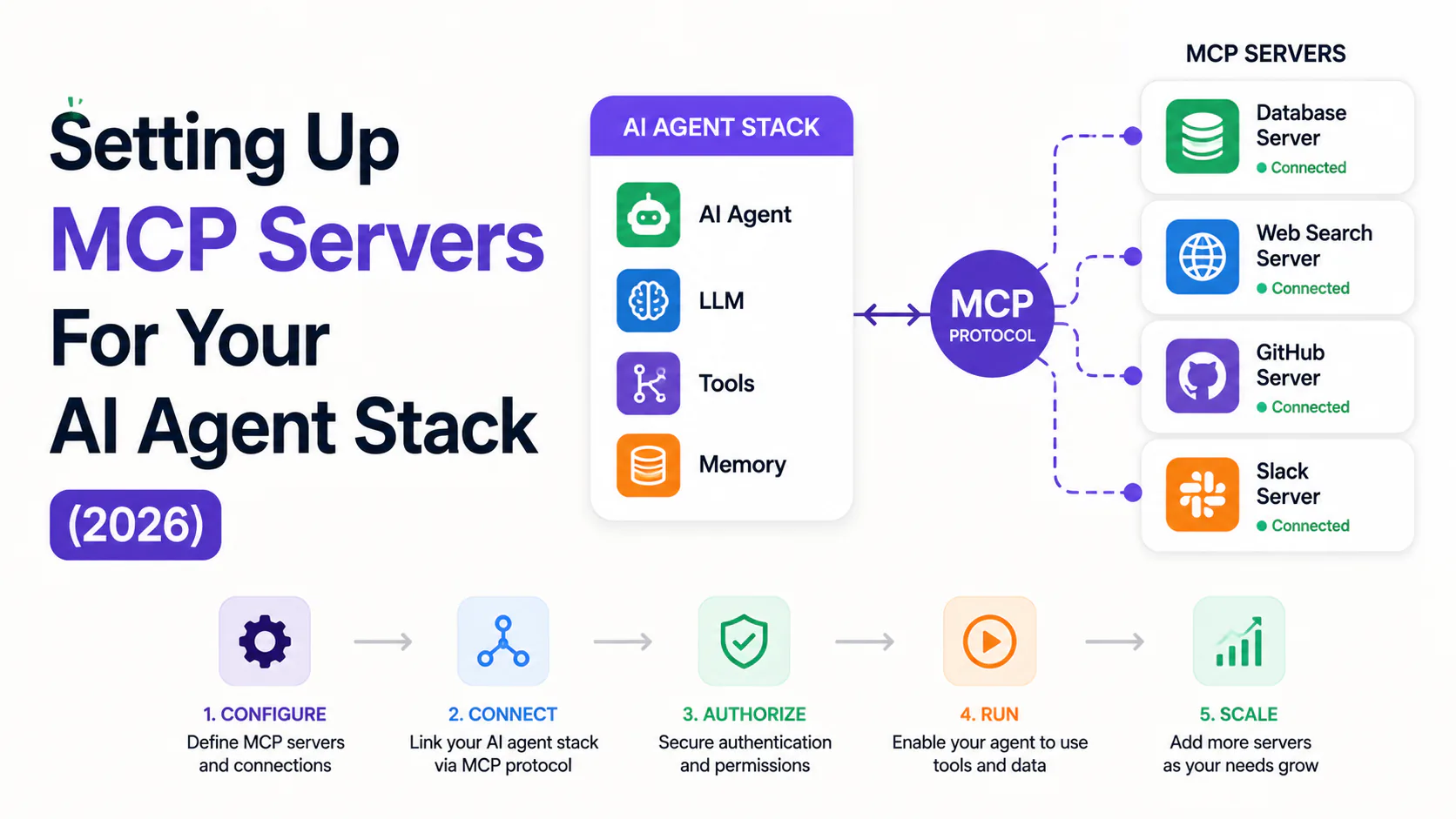
For more on the Cursor 3 feature set, including Composer 2.5's multi-file refactoring and the new Jira integration, see our Cursor 3 review. To wire MCP tools into your stack first, follow our MCP server setup guide.
Where to go from here
Background Agents are production-ready for well-scoped tasks and genuinely change the economics of solo and small-team development. The setup takes about 15 minutes. The first real payoff is the first meeting you attend and return from to a finished PR.
Start with one agent on one well-defined ticket. Watch the PR it produces, evaluate the quality, and set your credit baseline. From there, the parallel dispatch pattern scales as your confidence in task description quality grows.
Current pricing and plan details at cursor.com/pricing. Background Agent availability requires Pro plan or higher with usage-based billing enabled.
Frequently asked questions
Yes. Background Agents are not available on the free Hobby plan. You need Cursor Pro ($20/month) or higher, plus usage-based billing enabled or a minimum $10/month spending limit configured. Agent execution uses separate credits on top of your base plan cost.
Cursor supports up to eight parallel Background Agents, each in its own isolated cloud VM and git worktree. There is no local resource contention since agents run on Cursor's cloud infrastructure, not your machine.
No. Background Agents currently require GitHub. GitLab, Bitbucket, and self-hosted Git platforms are not supported. If your team uses a non-GitHub platform, you cannot use this feature in its current form.
/worktree runs a single task in an isolated git worktree on a separate branch, keeping it from
affecting your current working branch. /multitask breaks one request into multiple parallel
subagents, each handling a portion of the work in its own worktree. Use /worktree for one
isolated task; use /multitask when you have several independent subtasks you want completed
simultaneously.
The cost depends on agent runtime and the model selected. A five-minute agent run on Claude Sonnet uses far fewer credits than a 30-minute run on Claude Opus 4.7. There is no published per-PR rate because it varies by task complexity. Set spending limits and monitor credit consumption per session for your first two weeks to establish a personal baseline before scaling to a full team.